What You'll Do After This Guide
Upload bank statements → categorize each transaction to the correct accounting account → create rules for future auto-matching and suggestions → view reconciliation reports and export them → enable automatic balanced journal entry posting. Result: bank balance matches your books and invoices, closing the books in minutes instead of hours.
Don't have the big picture yet? Preview the Bank Reconciliation article to understand what the feature can do.
Preparation
| # | Condition | Why It's Needed |
|---|---|---|
| 1 | Log in to GTG CRM, with permissions for bank transaction reconciliation and viewing payment documents. | Only authorized personnel can categorize/post bank transactions. |
| 2 | Set up your Chart of Accounts in Accounting. | To categorize transactions and generate balanced journal entries. |
| 3 | Have statement data: connect your bank account or upload a statement file. | Reconciliation requires a list of transactions as input. |
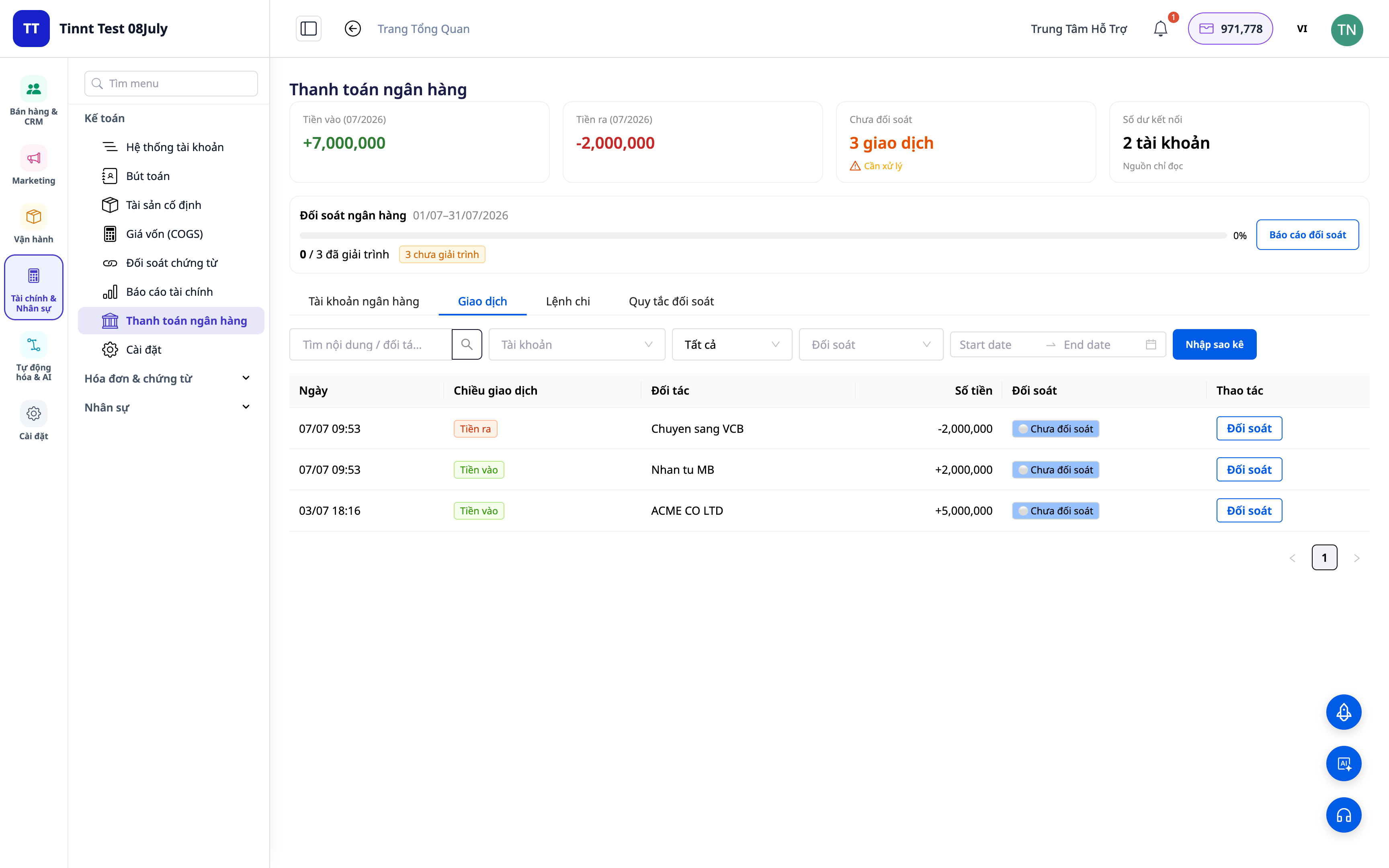
Step 1 — Open the Reconciliation Workspace and Upload Statements
- Go to Accounting ▸ Bank Reconciliation.
- Select the bank account to reconcile; upload the statement (connect account or download file) and choose the date range.
✅ Expected Result: A list of transactions for the period appears, with a categorization column and match status (unmatched/matched) for each line.
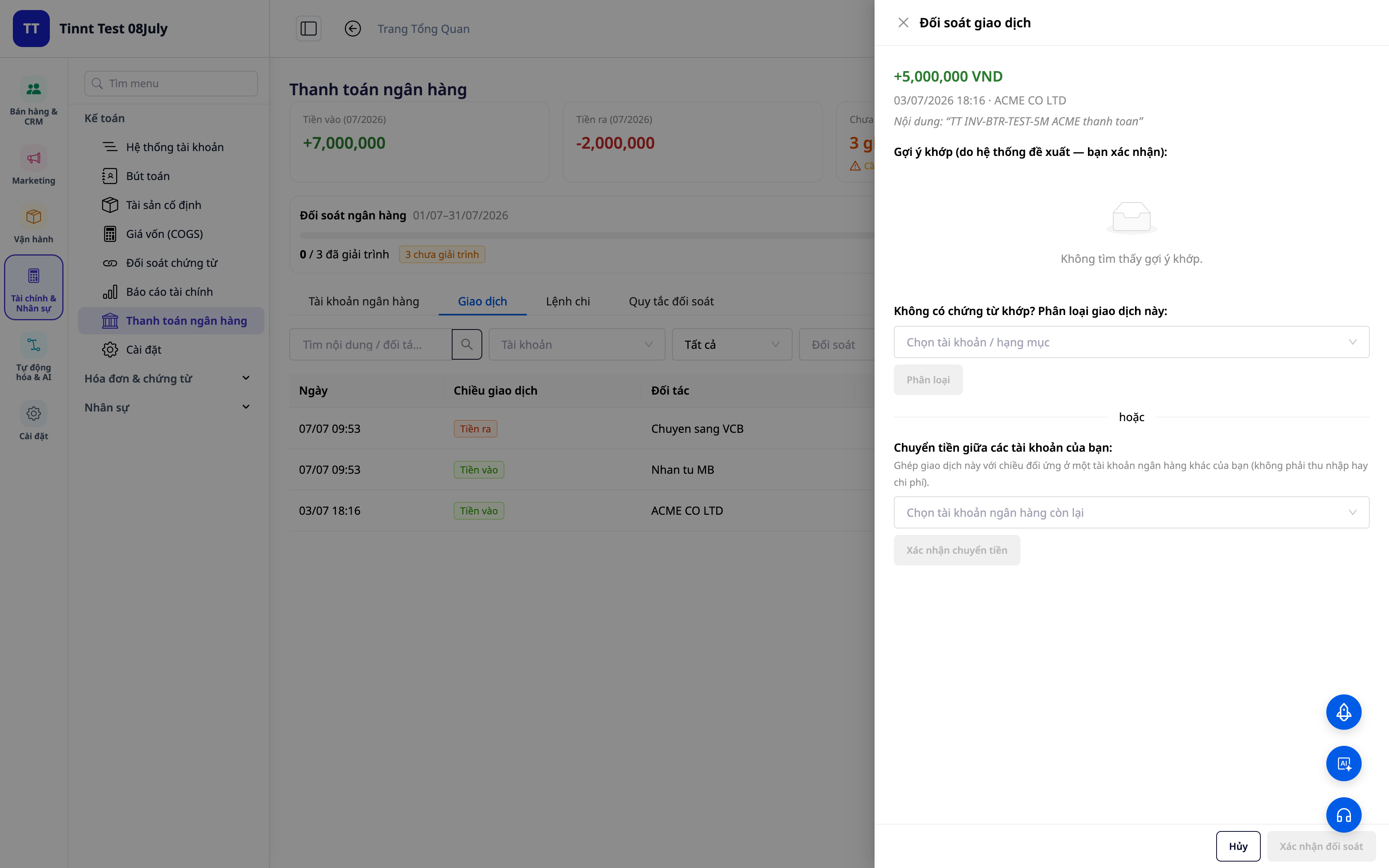
Step 2 — Categorize a Transaction to the Correct Account
- Select an unmatched transaction.
- Choose the transaction type (revenue / fee / internal transfer / cash-bank / COD…) and the corresponding accounting account; if it’s customer payment, link it to the appropriate invoice.
- Save.
✅ Expected Result: The transaction moves to "matched" status, linked to an account (and invoice if applicable). If posting is enabled, a balanced journal entry is created for this transaction.
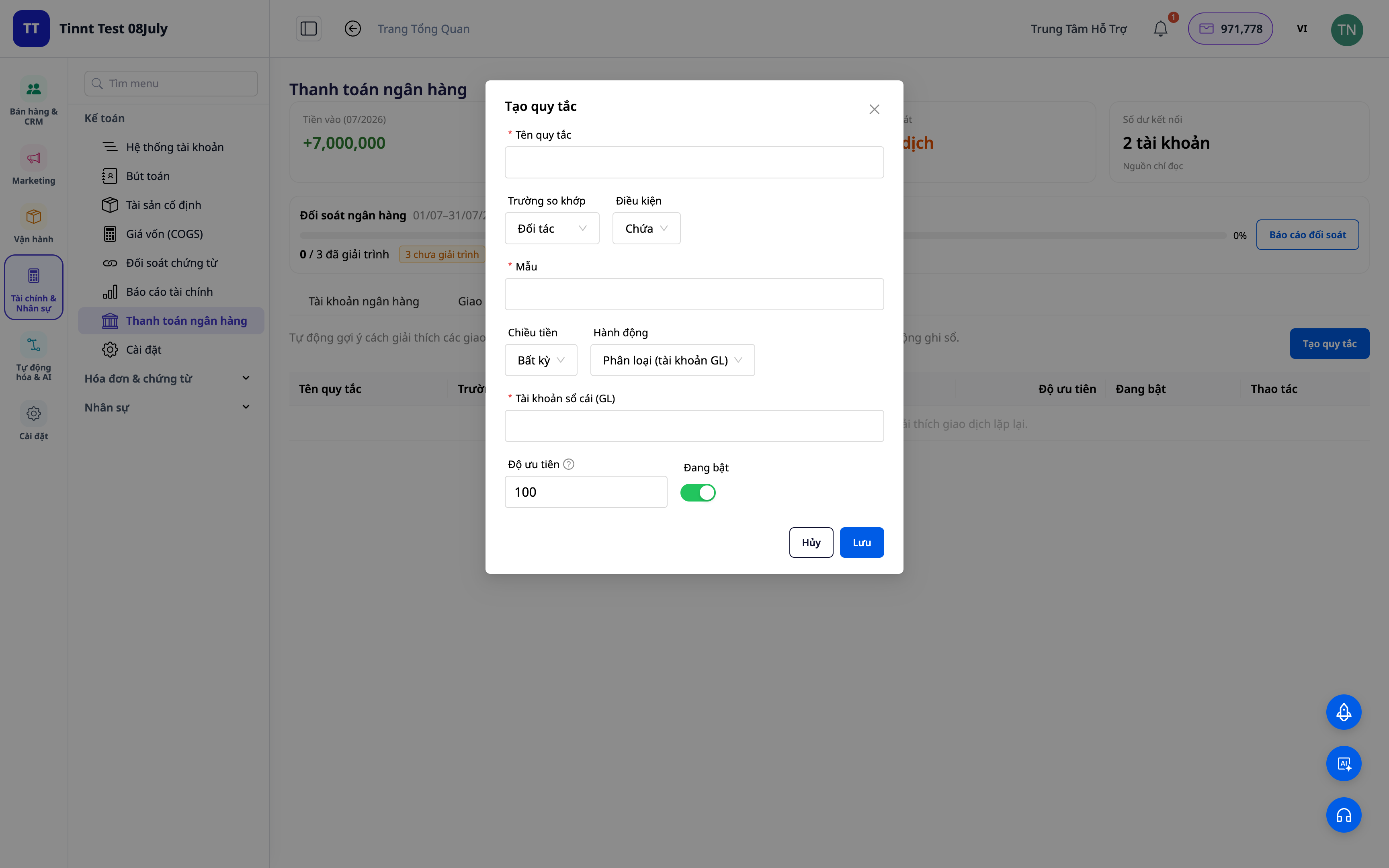
Step 3 — Create Matching Rules for Future Automation
- From a transaction, select Create Rule (or go to the Reconciliation Rules section).
- Set the conditions (description/partner/amount) and the type + account to assign.
- Save — the rule becomes active immediately.
✅ Expected Result: Future transactions matching the conditions are automatically categorized; the new rule is in an active state.
Step 4 — Let Rules Suggest Categorization for Similar Transactions
- Upload the statement for the next period (or add new transactions).
- Transactions matching the conditions of rules created in Step 3 are automatically suggested for categorization; review and approve them for bulk application.
✅ Expected Result: Transactions similar to previous ones have their categorization suggested; you just need to approve instead of redoing everything.
ℹ️ Matching and suggestions via rules are free. Coming Soon: an AI assistant to suggest explanations for entirely new transactions.
Step 5 — View Reconciliation Reports and Export
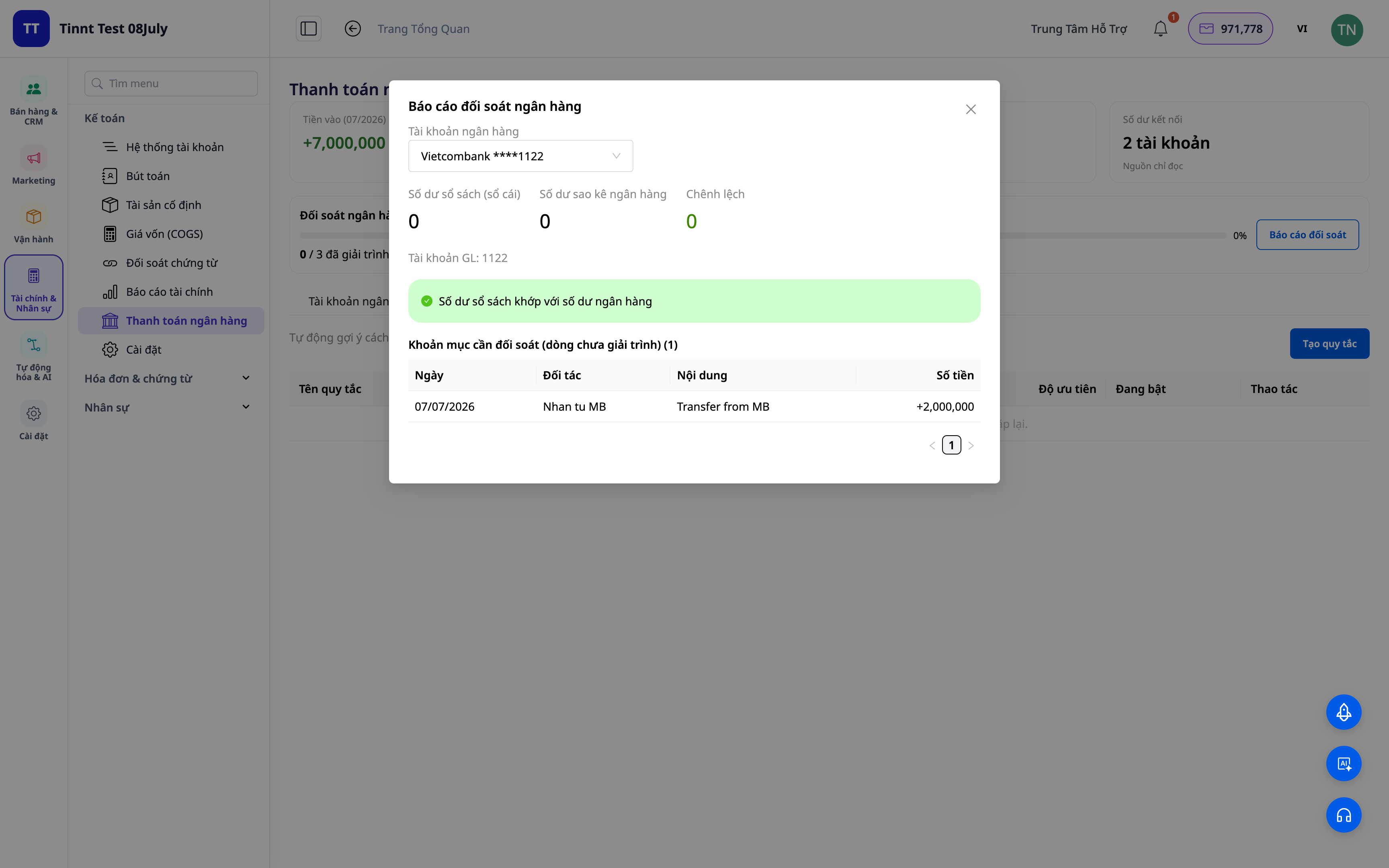
- Open the Overview/Reconciliation Report tab.
- View matched amounts, outstanding items, and discrepancies; export the report for your records.
✅ Expected Result: The overview dashboard shows the match rate and outstanding items; the exported report is complete for explanation.
Step 6 — Enable Automatic Balanced Journal Entry Posting (Optional)
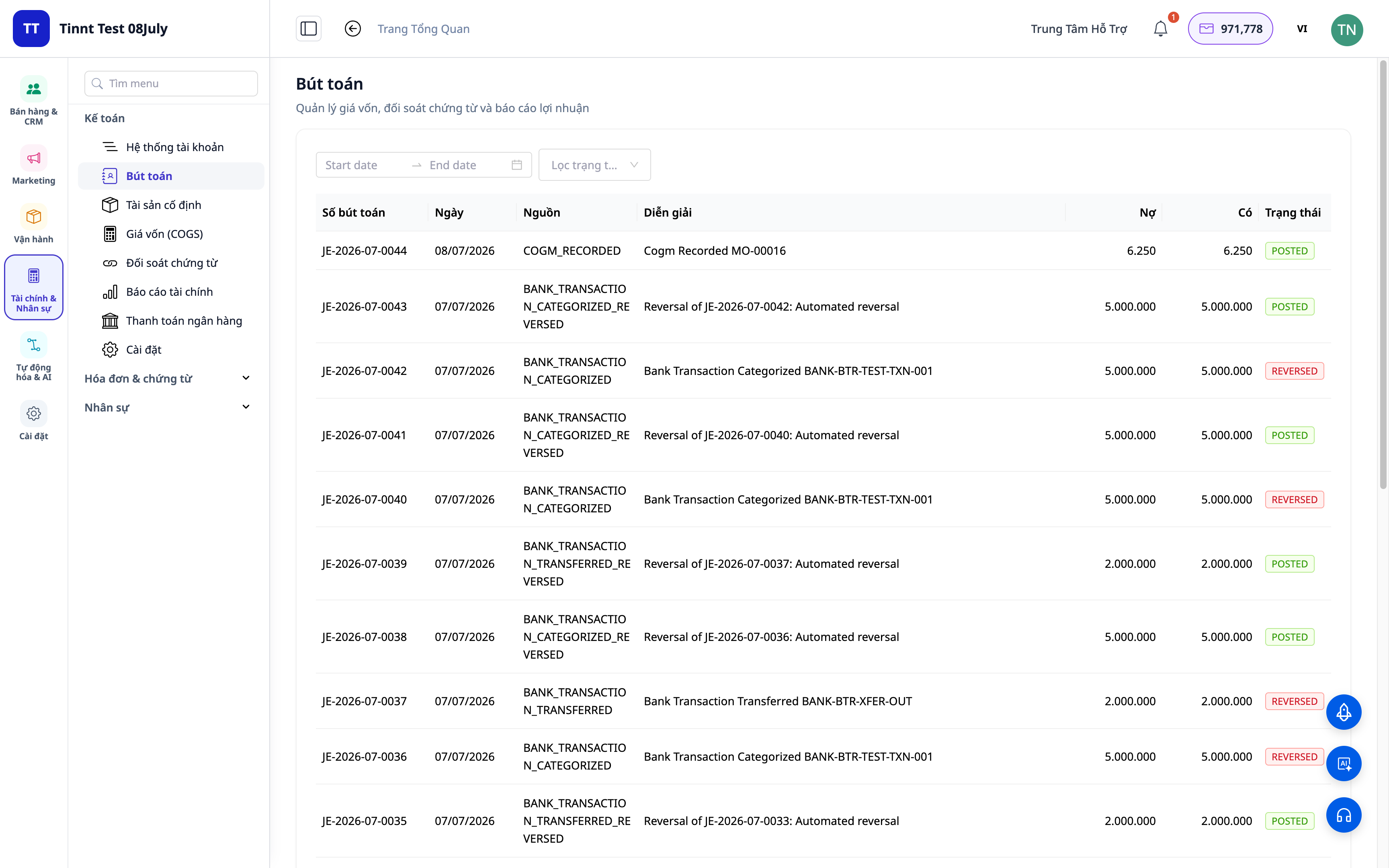
- In the account settings, enable the Post to ledger option.
- From then on, categorized transactions (categorized/transfers/cash-bank/COD) will automatically generate balanced journal entries. Unlinking a transaction will reverse its entry.
✅ Expected Result: Each reconciled transaction creates a balanced journal entry in the general ledger; unmatching it creates a corresponding reversing entry.
Quick Reference Table of Expected Results
| Action | What You'll See |
|---|---|
| Upload statement | Transaction list + match status |
| Categorize transaction | Changes to "matched", linked to account/invoice |
| Create rule | Similar transactions auto-categorized in the future |
| Rule suggestion + approval | Similar transactions suggested for categorization, bulk approval |
| View report | Matched/outstanding/discrepancy figures; exportable report |
| Enable posting | Balanced journal entries auto-created; unmatch → reversing entry |
Notes
- Balanced journal entries require the Chart of Accounts to be set up in Accounting.
- All suggestions always require your approval before application — you are the final decision-maker. (AI explanation suggestions for entirely new lines will be added soon.)
- COD Reconciliation: when the shipping company/marketplace remits payment, use the COD categorization step to match and clear "cash in transit" amounts.